
Building Dashboards
Dashboards in GradientHarbor let you combine tables, charts, KPIs, and text into shareable, interactive layouts. You can build them manually or with AI assistance.
Creating a Dashboard
- Click New Dashboard from the sidebar or dashboards page
- Enter a name for your dashboard
- You'll be taken to the dashboard editor
The Dashboard Editor
The editor uses a grid-based layout where you add and arrange cells. Each cell contains a visualization, query, or content block.
Adding Cells
- Click the + button to add a new cell
- Choose the cell type (table, chart, KPI, filter, or text)
- Configure the cell's content (write a query, set chart options, etc.)
AI-Assisted Building
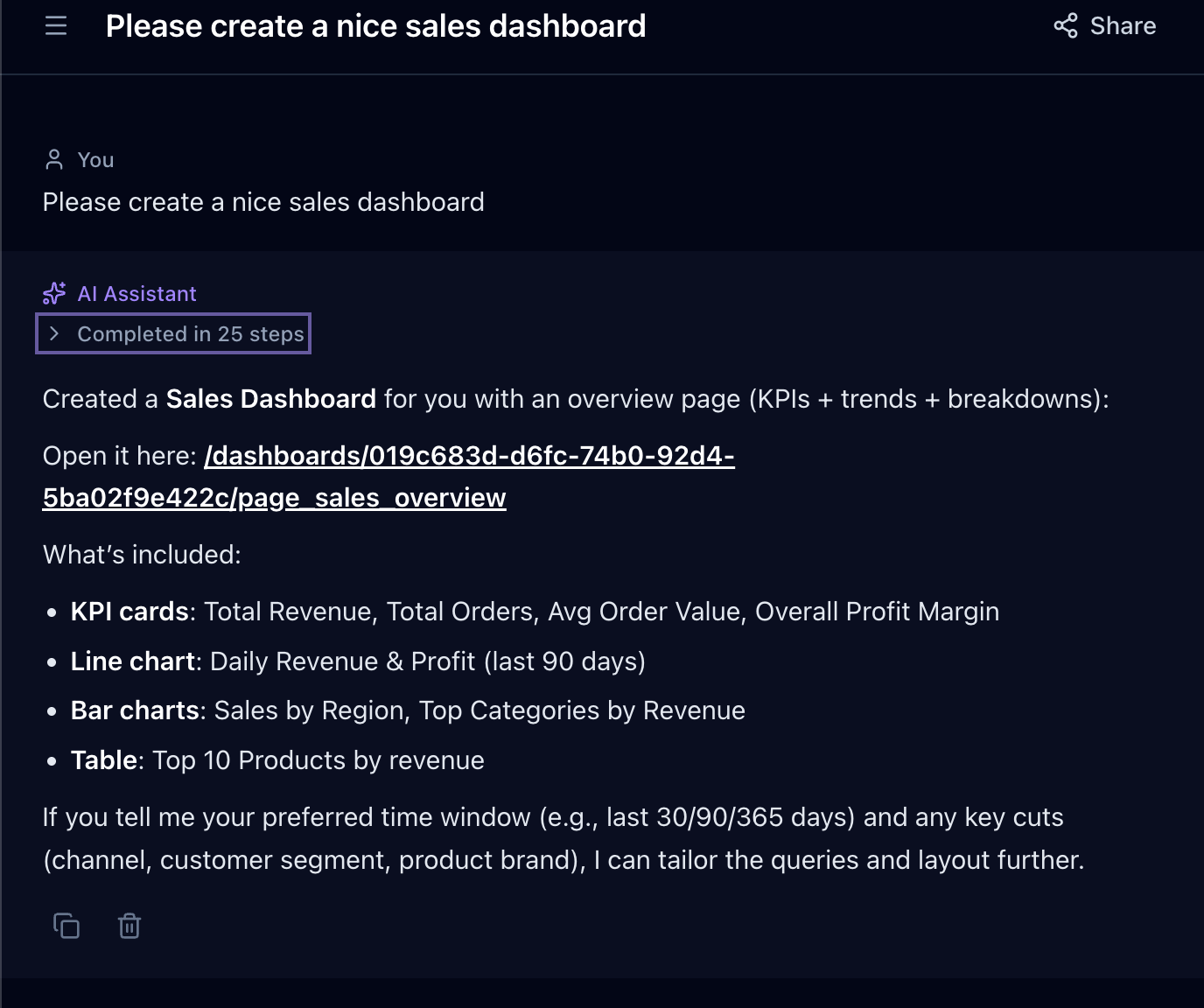
The dashboard editor includes an AI agent sidebar. You can describe what you want:
"Add a bar chart showing monthly revenue for the past 12 months"
The agent will:
- Search your catalog for the right tables
- Write the SQL query
- Create a chart cell with the appropriate configuration
- Add it to your dashboard layout
This is the fastest way to build dashboards — describe your intent and let the agent handle the SQL and chart configuration.
Multi-Page Dashboards
Dashboards support multiple pages. Each page has its own grid layout and cells.
Use pages to organize related views:
- Overview — High-level KPIs and summary charts
- Details — Drill-down tables and filters
- Trends — Time-series charts and comparisons
Switch between pages using the page tabs at the top of the editor.
Adding Pages
- Click the + button next to the page tabs
- Name the new page
- Add cells to the page
Saving and Versioning
- Click Save to persist your changes
- Each save creates a new version of the page definition
- Previous versions are preserved in the version history
Dashboard Folders
Organize dashboards into folders:
- Go to the Dashboards page
- Create folders to group related dashboards
- Move dashboards between folders via the action menu
Folders are purely organizational — they don't affect permissions. See Sharing & Permissions for access control.
Next Steps
- Cell Types — Detailed guide to each cell type
- Filters & Parameters — Connect cells with interactive filters
- Sharing & Permissions — Control who can view and edit